





Bulk Import Zones in MyGeotab for Better Fleet Management
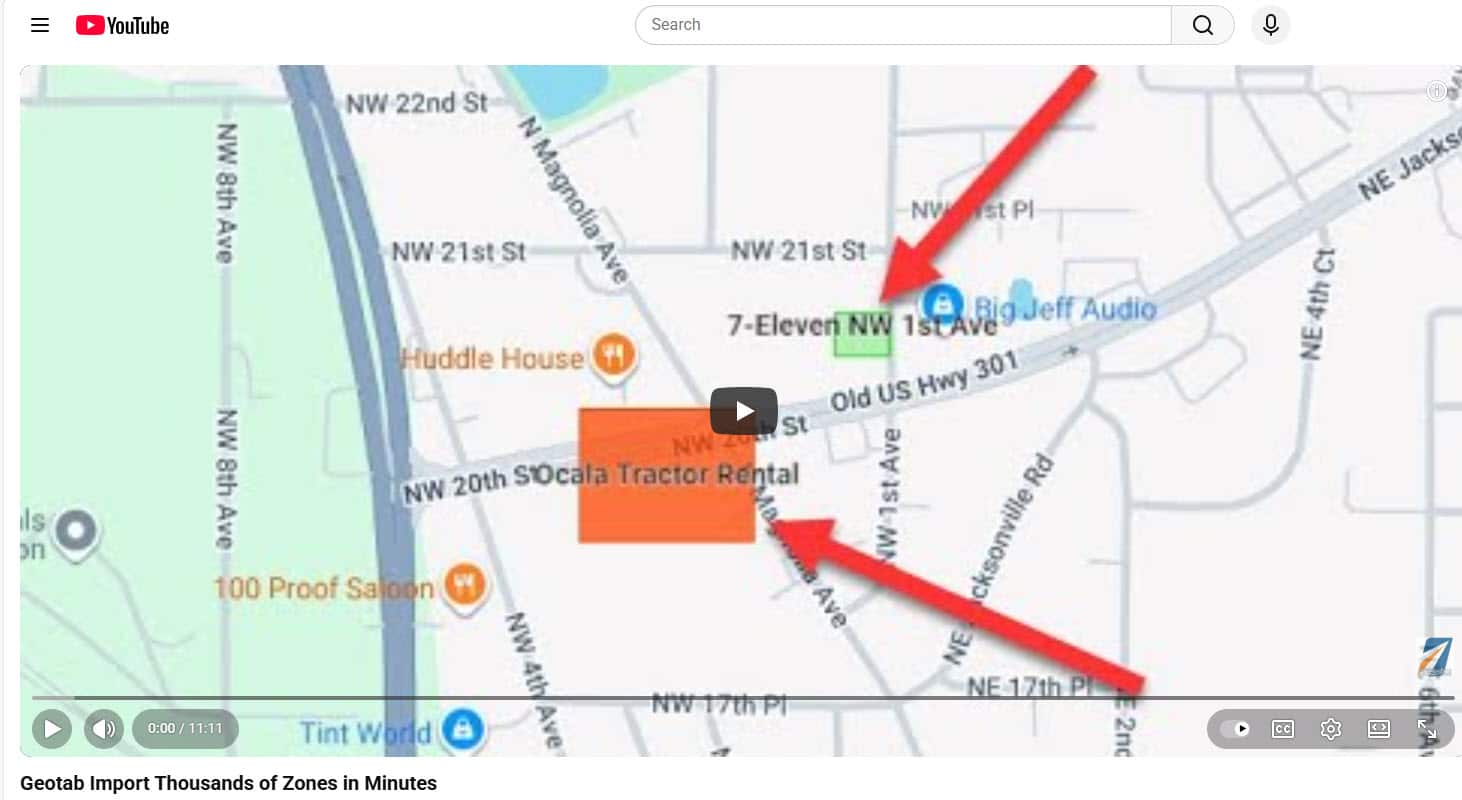
If you’re managing a fleet in MyGeotab, adding or importing zones one by one can feel like painting a fence with a single tiny brush. Thankfully, there’s a way to import thousands of zones in one go, and this video shows you exactly how it’s done.
Whether you’re new to Geotab or just want to optimize your workflow, this step-by-step guide is going to walk you through the whole thing in a chill, practical way – no geek speak that makes your eyes glaze over.
Why Bulk Importing Zones Matters
First, let’s break down what a “zone” is in MyGeotab. Zones are basically virtual areas on a map that let you track and manage fleet activity in specific places—think customer sites, warehouses, office areas, or even entire regions.
If you’re tagging a lot of locations, manually creating them one by one takes time, especially when you’ve got hundreds or thousands of zones to enter. That’s where bulk importing zones comes in: instead of clicking an endless stream of “Add Zone” buttons, you do it in one swoop by uploading a formatted file straight into MyGeotab.
This saves time and reduces errors—and honestly, it feels great not having to do the same thing over and over again.
Step-by-Step: Bulk Import Zones in MyGeotab Made Easy
- Prepare Your Zone List
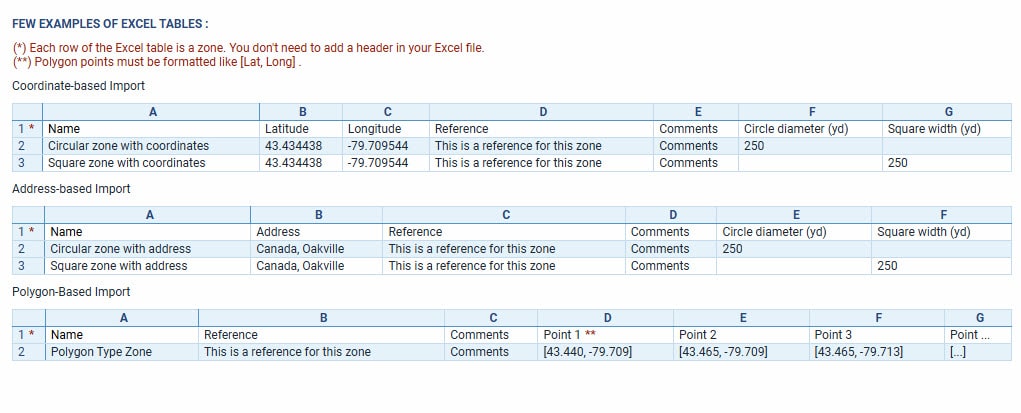
Before you even touch MyGeotab, get your zones sorted in a spreadsheet (CSV). Each row should hold the key details for a zone: name, address or coordinates, and any other settings you want to use.
Think of this like prepping ingredients before you start cooking—it saves a ton of time once you’re in the software.
💡 Tip: Use consistent naming and check your address or GPS fields for errors before you upload.
- Go to the “Import Zones” Feature
Once your spreadsheet is ready:
- Log in to MyGeotab.
- Navigate to Productivity → Zones → Import Zones.
You’ll see a spot to drag and drop your CSV file. Just drop it in and MyGeotab will do the rest.
- Review the Import Preview
After uploading, the system will show you a preview with:
- Valid zones — the ones good to go.
- Invalid zones — the ones that need fixing.
You can export the invalid list, fix errors in your spreadsheet, and upload again without losing your progress. Sweet.
- Choose How the Zones Should Behave
Before you finalize the upload, you’ll see options:
- What group should these zones belong to?
- Should they be visible on the map?
- What type of zone are they (customer, office, etc.)?
- Want them transparent or bold on the map?
Customize these before clicking the last “Import” button.
- Done! Zones Live in MyGeotab
After the import completes, all your new zones show up in your dashboard. From here you can:
- Link them with rules (alerts when vehicles enter/exit)
- Run reports based on zone visits
- Use them in route planning
This is where the real power kicks in—tracking patterns and optimizing how your fleet moves in and out of these areas.
Real-World Benefits
Let’s say you manage 200 vehicles across 50 cities. Manually adding zones for each client location would take hours (or days). But with a CSV import, you just upload once and let MyGeotab do the heavy lifting.
Here’s what you unlock:
✅ Better visibility — See where your team spends time and where they don’t.
✅ Smarter reporting — Pull metrics tied to those zones, like how often drivers enter specific areas.
✅ Rule automation — Set alerts like “notify me if a truck hasn’t left the depot after 9 a.m.” or “alert if a vehicle enters a paide area after hours.”
These features are super useful if you want actionable data, not just pretty maps.
💡 Bonus Tips – How the Pros Bulk Import Zones in MyGeotab
To make your bulk import process smoother:
Use Google Sheets or Excel formulas to clean up addresses or calculate coordinates.
If you’re doing this regularly, save a template CSV format so you don’t keep reinventing the wheel.
Got a ton of invalid records? Fix common issues like misformatted coordinates or missing fields before you upload again. Learn from the errors—you’ll import cleaner data next time.
Want Even More Control?
If you’re into automating workflows, Geotab also supports importing zones via API or JavaScript tools—great if you want to sync with external systems or automate updates. You can chat with other developers and get even more ideas from the Geotab Community.
Honestly, that’s next-level, but if you’re just starting, focus on getting comfortable with the CSV method first.
Wrapping It Up
Importing thousands of zones in MyGeotab doesn’t have to be painful. Once you prep your CSV, navigate to Import Zones, tweak a few settings, and hit upload – it’s as simple as that. Practice makes perfect, and before long you’ll be able to bulk import zones in MyGeotab like it’s no big deal.
If you’re in fleet management and want to take your tracking and reporting game up a notch, mastering bulk zone imports is a must-know skill. Plus, it saves loads of time—time you can spend actually improving operations instead of clicking the same buttons over and over.
- Need help setting up zones or reports? Talk to our fleet experts.
- Want to automate this process even further? Ask us about Geotab APIs.
FAQ: Bulk Import Zones in MyGeotab
• What are zones and why import them in bulk?
Zones are virtual locations—like customer sites or offices—used to track fleet activity. Importing them in bulk saves significant time and reduces manual data entry errors.
• How do I prepare to bulk import zones in MyGeotab?
Prepare to import zones in MyGeotab by creating a spreadsheet (CSV) listing zone details (name, address/coordinates, etc.) and double-check for consistency or errors before uploading. Do not include suite numbers in the addresses, as they will compromise the reverse geocoding.
• Where do I upload my CSV file?
Log in to MyGeotab and go to Productivity → Zones → Import Zones to drag-and-drop your prepared file.
• How does the system handle errors during upload?
You’ll see a preview showing valid and invalid zones. Export the invalid ones, fix issues, then re-upload—without losing your progress.
• What can I configure before final import?
Choose settings like which group zones belong to, map visibility, zone type, and display options before confirming.
• What benefits do bulk-imported zones offer?
They improve visibility and reporting, let you automate rules and alerts about vehicle activity, and help optimize routes and operations.
Fleet Tracking and Telematics
Fleet Management
Mobile Tracking Apps
Fleet Safety